Wednesday, August 26, 2015

Pointers and Arrays in C - The story of George St


Arrays and Pointers in C-programming are 2 different types used in a similar manner.

To make an analogy, let’s assume that  there is a street called George street. Buildings are built along the street.


The original plan is that every house takes up the same space (1 unit) and each is assigned a street number. The next house has a street number incremented by 1 from the previous one.


So the street number for houses along the street will be 1, 2, 3, 4 … 249, 250. When people want to build a house or go to a friend’s house to pick up something, they ask for the street number and go to the address accordingly.


This works pretty well for a while.


However, a few years later, this suburb is re-zoned for both residential and business uses.


Since then, warehouses have been built in this area. Unlike normal houses, the warehouse takes up twice as much space as a normal house, which is 2 unit of space.


Buildings are no longer the same size, you can’t assume that each street number represents a house anymore.


As a result, people can’t just ask for an address and use that unit of space without telling the planner what type of the building they are planning to build or visiting.


For example, a warehouse is built in the space which was originally planned for house number 204 and 205.


When people apply to build a warehouse starts from number 204,  the land planner writes down that warehouse is assigned street number 204 and it has the size of 2 unit of space.


So we know that the space for street number 204 and 205 are taken since the warehouse has a size of 2 unit of space.


Next time, they have to start from street number 206 to build something else.

A pointer is like a street number from which you can find the address and the type of building or space you want to use. A pointer must have a type or otherwise you don’t know how much space you can use or how big is the building.


When people want to use some space or to visit a building, they go to the land planner and tell him the street number and the type of building they want to visit or plan to build. The land planner gives them a key with a tag, which has the type of building and the starting street number written on it.


Worth mentioning is that: this key can open any door on George Street.


Once the key and street number is given to you, you can feel free to go to the next door and the next door or the previous door … literally you can go wherever you like and do some doggy things in other people’s houses. But the result may not be what you want.

In some situations, you might want to use 3 warehouses in a row.


You can ask the planner to give you an array of 3 warehouses.


He will give you a key with a tag. On the tag it says: starting address 204; type: warehouse: number of elements: 3.


So you know that you can find the first warehouse by going to the address 204, since each warehouse takes up 2 unit of space, the next one will be at address 206 and the next one will be at 208.


Although there is nothing to stop you from going over the boundary of the space assigned to you, you might not want to do so as there might be serious consequences.


Unlike pointer, the address, type, and number of elements of an array cannot be changed as it is the key for you to find all 3 warehouses.  


Tuesday, August 25, 2015

onActivityResult called whenever the starting Activity instance is resumed

If Activity A starts another Activity B by calling the method startActivityForResult(...).

Whenever the same Activity A instance is resumed, the onActivityResult of A is called.

If Activity B starts a new instance of Activity A, then the onActivityResult(...) method is not call.

For example, if Activity B calls startActivity and start a new instance of Activity A on top of the task stack.
Intent startMainActivity = new Intent(this, MainActivity.class);
startActivity(startMainActivity);

The onActivityResult(...) is not called.

But if Activity B starts the same instance of Activity A by using the FLAG_ACTIVITY_CLEAR_TOP and FLAG_ACTIVITY_SINGLE_TOP flags in the intent.

setResult(Activity.RESULT_OK);
Intent startMainActivity = new Intent(this, MainActivity.class);
startMainActivity.addFlags(Intent.FLAG_ACTIVITY_CLEAR_TOP);
startMainActivity.addFlags(Intent.FLAG_ACTIVITY_SINGLE_TOP);
startActivity(startMainActivity);


Then the onActivityResult(...) is called.

However, the resultCode you passed in through method setResult(...) in Activity B will not be passed through Activity A if A is started by an Intent.

Although the onActivityResult(...) is called, but the resultCode is still 0 (RESULT_CANCELED)

Only if we finish Activity B and expose Activity A on to the top of task stack will pass the resultCode -1 (RESULT_OK) to onActivityResult(...) in Activity A.

setResult(Activity.RESULT_OK);
finish();


Monday, August 10, 2015

How to import an existing Android Studio Project as a Library Module (Step-by-step guide)

In the situation where we have 2 Android Studio projects and we want to use one as a library project which is to be imported to another project as a module. We can easily do that with Android Studio.


Let's assume that we have 2 projects: MyApplication and MyLibrary and we want to import MyLibrary project into MyApplication as a module.


The first thing we need to do is to find the build.gradle file in the module that we want to import from MyLibrary project, which is usually in the app directory unless you changed the name of the module

MyLibrary
      |__app 
             |___build.gradle


 Notice that the build.gradle file plugin is the 'com.android.application' plugin. To use this project as a library project, we need to apply the 'com.android.library' plugin. The file will be like this:


Try to sync the project, an error will occur: Library projects cannot set applicationId.


We can fix that by removing the applicationId line in the gradle file, inside defaultConfig brackets.


That's all for the MyLibrary project. 
Next we move on to the MyApplication project to import MyLibrary as a module.
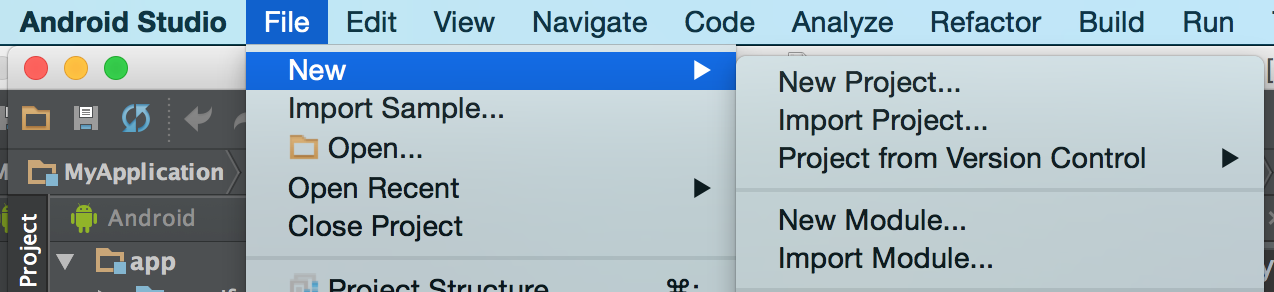
Go to MyApplication project, click File -> New -> Import Module.


An dialog appears


Navigate to the directory of the Module you want to import from the MyLibrary project. Usually it's the app module unless you've given it another name.


An error will occur if there is a Module in MyApplication project with the same name. To import an updated module from a library project, we can give it a version number in the Module name setting here. 


Change the name of the module to my-library, imported successfully.


Almost there, the last step is to fix the dependencies in MyApplication project. Many people forget to do this.

Start the Project Structure dialog, select the app module(can have another name), and click the dependencies tab on the right side.


Find the plus button and click it, select module dependency on the pop-out menu.


and then select the library module we just imported from MyLibrary project.


Click OK, and it's all done.

What the IDE does for you is to add the dependency in MyApplication/app/build/gradle file.

MyApplication
      |__app 
             |___build.gradle

The dependencies section looks something like this:


dependencies {
    compile fileTree(dir: 'libs', include: ['*.jar'])
    compile 'com.android.support:appcompat-v7:22.2.0'    
    compile project(':my-library')
}


It might work just fine, but there is potentially a problem, the MyLibrary project has its own dependencies. For example, both MyApplication and MyLibrary can be using support libraries, which might have version conflicts.

We can avoid this by configuration transitive dependencies in gradle.
We can change the line


compile project(':my-library')


to

compile(project(':my-library')){
    transitive=false;
}


This issue will be avoid. Done!


That's all. Happy coding!

Friday, July 17, 2015

How to use an external project as a library project in Android Studio

We have 2 Android projects:
MyApplication is the project that produces apk and to be run on mobile devices;
Dependency is a library project that contains useful classes such as Fragments, Services, Util classes to be used by MyApplication.

The structure of these 2 projects are like this:
MyApplication
  |--build.gradle
  |--settings.gradle
  |--app
  |    |--build.gradle
Dependency
  |--build.gradle
  |--settings.gradle
  |--app
  |    |--build.gradle

First of all, we need to make sure that the gradle plugin of Dependency/app/build.gradle is library instead of application. The first line of the build.gradle file should be this:


apply plugin: 'com.android.library'

Then we go back to the MyApplication project, find the settings.gradle file under the project directory(MyApplication/settings.gradle), edit it to include our Dependency project by adding the lines like this:


include ':library-project-name'
project(':library-project-name').projectDir = new File(settingsDir, '../Dependency/app/')

the second parameter of File(.., ..) is a directory path pointing to the build.gradle file of the app module of the library project.


The last step is to configure the build.gradle file of the app module of the MyApplication project in order to add the library project to its dependencies.

We go to MyApplication/app/build.gradle file and add a line to the dependencies block.


dependencies{
   ........
   compile project(':library-project-name')
}

All done, feel free to use any classes in the Dependency library project in your MyApplication project from this point on.

Wednesday, July 8, 2015

Useful commands for Android Developers on Mac

Check jdk path

/usr/libexec/java_home -v 1.7

Add JDK path to environment variables

export JAVA_HOME=/Library/Java/JavaVirtualMachines/jdk1.7.0_79.jdk/Contents/Home

Add gradle to path

GRADLE_HOME=/Users/ericliu/Developer/Android/gradle-2.5;
export GRADLE_HOME
export PATH=$PATH:$GRADLE_HOME/bin

Add adb to path

export PATH=$PATH:/Users/ericliu/Library/Android/sdk/platform-tools


Open a file with an Application

open Application.app

Or:


open -a Application filename


Close an Application from Terminal

osascript -e 'quit app "APPLICATIONNAME"'

For example, to quit Calendar from the command line, replace APPLICATIONNAME with “Calendar”
osascript -e 'quit app "Calendar"'


Enable Git auto-completion and add the current branch, and the status of the working directory info to the  prompt
First, download some script files from github and rename them to start with "." so they will become hidden files.

curl -OL https://raw.githubusercontent.com/git/git/master/contrib/completion/git-completion.bash

mv git-completion.bash .git-completion.bash

curl -OL https://raw.githubusercontent.com/git/git/master/contrib/completion/git-prompt.sh

mv git-prompt.sh .git-prompt.sh 


Then edit the .bash_profile file or .profile or .bashrc

# Git config: add the current branch, and the status of the working directory info to the # prompt
. ~/.git-prompt.sh
export GIT_PS1_SHOWDIRTYSTATE=1
export PS1='\w$(__git_ps1 " (%s)")\$ '


# Git config: load the .git-completion.bash file if it exists
if [ -f ~/.git-completion.bash ]; then
    source ~/.git-completion.bash
fi


Now the auto-completion for git is enabled and the prompt line will now display the current branch name. If you go to a git repository directory, the prompt line will now look like this:

~/Developer/Work/MyApplication (master)$ 


View Android Task Stack from command line

adb shell dumpsys activity

To be more concise:

adb shell dumpsys activity activities | sed -En -e '/Stack #/p' -e '/Running activities/,/Run #0/p'

In addition, if you only want to see the activities' name in the stack you can do this:

adb shell <enter> dumpsys activity | grep -i run


Compile a C program file.

gcc HelloWorld.c

And run the compiled result.

./a.out


References:

http://osxdaily.com/2014/09/05/gracefully-quit-application-command-line/

http://stackoverflow.com/questions/2442713/view-the-tasks-activity-stack

Tuesday, June 23, 2015

Why the Outer Class has access to inner Class instances' private fields

Consider a class like this


public class Subclass extends Superclass {
 int subMember;
 

 private void interestingMethod(){
  System.out.println("Subclass is interesting");
 }
 
 @Override
 protected void notSoInteresting() {
  super.notSoInteresting();
  System.out.println("Subclass is not so interesting.");
 }
 
 
 public void accessInnerClassFields(){
  Innerclass innerClass = new Innerclass();
  innerClass.innerClassId = 3;
 }
 
 public class Innerclass{
  private long innerClassId = 32L;
  
  void changeOuterMember(){
   subMember = 3;
  }
 }
 
 public void accessInnerStaticClassFields(){
  EricLiu eric = new EricLiu();
  long copyEricId = eric.ericId;
 }
 
 
 public static class EricLiu{
  private long ericId = 123L;
  
 } 
}


Let's look at the methods accessInnerStaticClassFields() and accessInnerClassFields(). They both access the private fields of an inner class, either a static one or non-static one. How does that happen?
The Java Virtual Machine has no idea that they are inner classes so it should prevent another class from accessing the EricLiu and InnerClass's private class members.

Let's dive into the bytecode. call javap -v -p -s -sysinfo -constants Subclass.class
to dissect the outer class first.


 public void accessInnerClassFields();
    Signature: ()V
    flags: ACC_PUBLIC
    Code:
      stack=3, locals=2, args_size=1
         0: new           #37                 // class Subclass$Innerclass
         3: dup           
         4: aload_0       
         5: invokespecial #39                 // Method Subclass$Innerclass."<init>":(LSubclass;)V
         8: astore_1      
         9: aload_1       
        10: ldc2_w        #42                 // long 3l
        13: invokestatic  #44                 // Method Subclass$Innerclass.access$0:(LSubclass$Innerclass;J)V
        16: return        
      LineNumberTable:
        line 23: 0
        line 24: 9
        line 25: 16
      LocalVariableTable:
        Start  Length  Slot  Name   Signature
               0      17     0  this   LSubclass;
               9       8     1 innerClass   LSubclass$Innerclass;

  public void accessInnerStaticClassFields();
    Signature: ()V
    flags: ACC_PUBLIC
    Code:
      stack=2, locals=4, args_size=1
         0: new           #51                 // class Subclass$EricLiu
         3: dup           
         4: invokespecial #53                 // Method Subclass$EricLiu."<init>":()V
         7: astore_1      
         8: aload_1       
         9: invokestatic  #54                 // Method Subclass$EricLiu.access$0:(LSubclass$EricLiu;)J
        12: lstore_2      
        13: return        
      LineNumberTable:
        line 36: 0
        line 37: 8
        line 38: 13
      LocalVariableTable:
        Start  Length  Slot  Name   Signature
               0      14     0  this   LSubclass;
               8       6     1  eric   LSubclass$EricLiu;
              13       1     2 copyEricId   J


Apparently the accessInnerClassFields() method has called an method named:
Subclass$Innerclass.access$0

to access the inner class instance's private field.
and the accessInnerStaticClassFields() method calls the method named:
Subclass$EricLiu.access$0

to access the inner static class instance's private field. So what are these access$0 methods?


Now let's take a look at the bytecode of the inner classes.
We found that the compiler has automatically created a static method inside of both inner classes for the outer class to access the fields. No matter the inner class is a static class or non-static.

Notice at bytecode level, static methods can access non-static fields

 static void access$0(Subclass$Innerclass, long);
    Signature: (LSubclass$Innerclass;J)V
    flags: ACC_STATIC, ACC_SYNTHETIC
    Code:
      stack=3, locals=3, args_size=2
         0: aload_0       
         1: lload_1       
         2: putfield      #19                 // Field innerClassId:J
         5: return        
      LineNumberTable:
        line 28: 0
      LocalVariableTable:
        Start  Length  Slot  Name   Signature


static long access$0(Subclass$EricLiu);
    Signature: (LSubclass$EricLiu;)J
    flags: ACC_STATIC, ACC_SYNTHETIC
    Code:
      stack=2, locals=1, args_size=1
         0: aload_0       
         1: getfield      #14                 // Field ericId:J
         4: lreturn       
      LineNumberTable:
        line 35: 0
      LocalVariableTable:
        Start  Length  Slot  Name   Signature

That is the reason why outer class can access inner class instances' private fields.


Thursday, June 11, 2015

Never call setRetainInstance(true) for a Fragment backed by Loaders

Never call setRetainInstance(true) when there is a List inside the Fragment which is backed by a Loader.

Loaders handle configuration changes itself, it will conflict with the saved Fragment instances.

I have run into the following errors a couple of times. By putting breakpoints inside the Android FragmentManager class, I've figured out that it is caused by Loaders calling onLoadFinished(..) while the reference to the Activity is null.

I don't have time to look into the FragmentManager class to figure out what the exact reason is that the mActivity is null right now so I just point it out. Will look into it in the future.


Process: com.ericliudeveloper.sharedbillhelper, PID: 11784 java.lang.NullPointerException at android.app.FragmentManagerImpl.moveToState(FragmentManager.java:950) at android.app.FragmentManagerImpl.performPendingDeferredStart(FragmentManager.java:785) at android.app.FragmentManagerImpl.startPendingDeferredFragments(FragmentManager.java:1086) at android.app.LoaderManagerImpl$LoaderInfo.onLoadComplete(LoaderManager.java:469) at android.content.Loader.deliverResult(Loader.java:144) at android.content.CursorLoader.deliverResult(CursorLoader.java:110) at android.content.CursorLoader.deliverResult(CursorLoader.java:43) at android.content.AsyncTaskLoader.dispatchOnLoadComplete(AsyncTaskLoader.java:265) at android.content.AsyncTaskLoader$LoadTask.onPostExecute(AsyncTaskLoader.java:92) at android.os.AsyncTask.finish(AsyncTask.java:632) at android.os.AsyncTask.access$600(AsyncTask.java:177) at android.os.AsyncTask$InternalHandler.handleMessage(AsyncTask.java:645) at android.os.Handler.dispatchMessage(Handler.java:102) at android.os.Looper.loop(Looper.java:146) at android.app.ActivityThread.main(ActivityThread.java:5748) at java.lang.reflect.Method.invokeNative(Native Method) at java.lang.reflect.Method.invoke(Method.java:515) at com.android.internal.os.ZygoteInit$MethodAndArgsCaller.run(ZygoteInit.java:1291) at com.android.internal.os.ZygoteInit.main(ZygoteInit.java:1107) at dalvik.system.NativeStart.main(Native Method)